Categories
- Knowledge and help (92)
- Blog (285)
- Oberon (12)
- bioplasm nls (14)
- Diacom nls (20)
- Metatron Hunter 4025 NLS review (41)
- Metatron Hunter Manual (7)


The Metatron Hunter 4025 NLS system collects and analyzes comprehensive health data across multiple body systems with its impressive 95% accuracy rate. This data represents not only valuable diagnostic information but also a significant investment of your time and expertise. Without proper backup procedures, you risk losing:
Regular backups ensure business continuity and protect your professional reputation. With the Metatron Hunter 4025 NLS system’s ability to scan 1432 organs and tissues in just 2 seconds, you can quickly accumulate substantial amounts of irreplaceable data that requires protection.
Our technical support team is available to help you secure your valuable Metatron Hunter 4025 NLS data.


Before beginning the backup process, it’s important to understand where the Metatron Hunter 4025 NLS system stores different types of data. The software creates several critical file types that must be included in your backup:
| File Type | Description | Default Location | Importance |
| Patient Records (.pat) | Individual client diagnostic data and histories | C:\Program Files\Metatron\Database\Patients | Critical |
| Analysis Results (.anl) | Detailed scan results and analysis data | C:\Program Files\Metatron\Database\Analysis | Critical |
| Custom Protocols (.prt) | Your saved therapy and treatment protocols | C:\Program Files\Metatron\Protocols | High |
| System Settings (.cfg) | Software configurations and preferences | C:\Program Files\Metatron\Config | Medium |
| Database Files (.db) | Core system databases with reference data | C:\Program Files\Metatron\Database | High |
Note: Exact file locations may vary slightly depending on your Windows version and installation preferences. The Metatron Hunter 4025 NLS software works with Windows XP, 7, Vista, 8, 10, and 11, but is not compatible with Apple macOS, Linux, or Unix systems.

Follow these detailed steps to create a complete backup of your Metatron Hunter 4025 NLS data on Windows 10 or 11:
“Regular backups of your Metatron Hunter 4025 NLS data are essential for protecting your practice and ensuring continuity of care for your clients. We recommend weekly backups at minimum.”

The backup process for Windows 7 and 8 is similar to Windows 10/11, with a few interface differences:
Important: Windows 7 has reached end-of-life and no longer receives security updates. For optimal security of your sensitive medical data, we recommend upgrading to Windows 10 or 11 when using the Metatron Hunter 4025 NLS system.
Our technical team can guide you through the backup process for your specific Windows version.
While Windows XP is no longer supported by Microsoft, some legacy Metatron Hunter 4025 NLS systems may still run on this operating system. If you’re using Windows XP, follow these steps:
Security Notice: Windows XP is highly vulnerable to modern security threats. We strongly recommend upgrading your operating system to protect sensitive patient data stored in your Metatron Hunter 4025 NLS system.

For optimal data protection, we recommend setting up automated backups of your Metatron Hunter 4025 NLS data using Windows Task Scheduler:
@echo off
echo Backing up Metatron Hunter 4025 NLS data...
xcopy "C:\Program Files\Metatron\Database" "D:\Metatron_Backups\Database" /E /I /Y
xcopy "C:\Program Files\Metatron\Protocols" "D:\Metatron_Backups\Protocols" /E /I /Y
xcopy "C:\Program Files\Metatron\Config" "D:\Metatron_Backups\Config" /E /I /Y
echo Backup completed successfully!
pause
(Replace D:\Metatron_Backups with your preferred backup location)
Pro Tip: For the most comprehensive protection, maintain at least three separate backups of your Metatron Hunter 4025 NLS data: one local, one on an external drive, and one cloud-based backup for disaster recovery.


In the event you need to restore your Metatron Hunter 4025 NLS data from a backup, follow these steps:
Caution: Restoring from backup will overwrite your current data. If you’ve collected new data since your last backup, consider merging the data instead of a complete restoration.

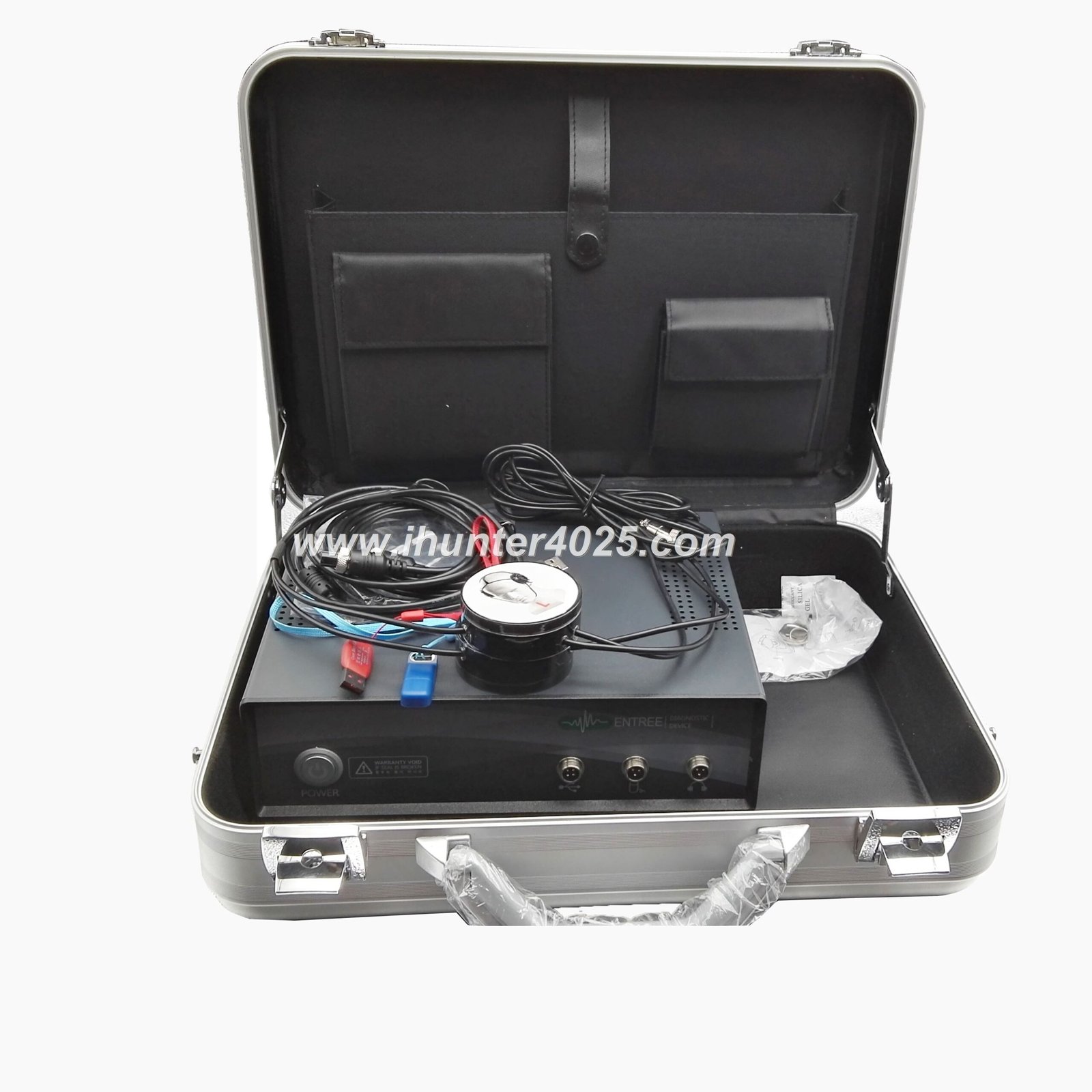
Implement these professional best practices to ensure maximum protection for your valuable Metatron Hunter 4025 NLS data:
“The most effective data protection strategy combines regular backups, secure storage practices, and proper system maintenance. This comprehensive approach ensures your Metatron Hunter 4025 NLS system remains reliable and your valuable diagnostic data stays protected.”
This typically occurs due to permission issues. Try running File Explorer as Administrator by right-clicking and selecting “Run as administrator.” If using the Metatron Hunter 4025 NLS on Windows 10/11, you may need to temporarily disable User Account Control during the backup process.
Slow backups usually indicate fragmented files or hardware limitations. Try these solutions:
This could indicate an incomplete backup or data corruption. Check these potential causes:
If problems persist, contact MAIKONG technical support for specialized assistance with your Metatron Hunter 4025 NLS system.
This may indicate configuration file conflicts. Try these steps:
Our technical team specializes in Metatron Hunter 4025 NLS systems and can help resolve any backup or data issues you’re experiencing.
To ensure smooth backup operations for your Metatron Hunter 4025 NLS system, your computer should meet or exceed these specifications:
| Component | Minimum Requirement | Recommended |
| Operating System | Windows XP/7/Vista/8 | Windows 10/11 (64-bit) |
| Processor | 1 GHz Pentium III | 2 GHz multi-core processor or better |
| RAM | 512 MB | 4 GB or more |
| Free Disk Space | 1 GB | 10 GB or more |
| USB Ports | 2 USB ports | 3+ USB 3.0 ports |
| Backup Storage | 4 GB external drive | 1 TB external drive for multiple backups |
Note: The Metatron Hunter 4025 NLS system is not compatible with Apple macOS, Linux, or Unix operating systems. Only Windows-based computers are supported.


MAIKONG offers a comprehensive range of diagnostic systems that complement your Metatron Hunter 4025 NLS. Each system is designed for specific diagnostic needs and integrates seamlessly with your existing setup:
Advanced diagnostic capabilities with enhanced 8-dimensional analysis for deeper insights into cellular health.
Our latest innovation with 9-dimensional scanning technology for comprehensive whole-body analysis.
The original Russian technology that pioneered non-linear diagnostic systems with proven reliability.
Our most advanced system with 18-dimensional analysis for unprecedented diagnostic precision.
Specialized system integrating Traditional Chinese Medicine principles with modern bioresonance technology.
Comprehensive information about our core technology and its applications in modern healthcare.


MAIKONG provides comprehensive support for all Metatron Hunter 4025 NLS systems, ensuring you get the most from your investment:
Training Resources: MAIKONG offers comprehensive training for all Metatron Hunter 4025 NLS users. Visit our training portal for video tutorials, user manuals, and advanced operation guides.
Have questions about backing up your Metatron Hunter 4025 NLS data or need technical assistance?
Or reach us via:
Proper data backup is essential for protecting the valuable diagnostic information collected by your Metatron Hunter 4025 NLS system. By following the comprehensive backup procedures outlined in this guide, you can ensure business continuity and safeguard your client records against data loss.
MAIKONG is committed to providing exceptional support for all our diagnostic systems. Whether you need assistance with data backup, system optimization, or are interested in exploring our advanced diagnostic solutions, our team is ready to help you maximize the potential of your Metatron Hunter 4025 NLS system.
Discover why healthcare professionals worldwide trust MAIKONG for advanced diagnostic solutions.